My guide to using Yubikeys
When I received my Yubikeys for the first time, I was pleased to find an existing guide to follow. This guide heavily focuses on setting up the keys for GnuPG.
If I had to set up my keys today, I think the process would be much simpler. I’d prefer to have a guide dedicated to Passkeys, with more details on how to use them, what information to save, and so on. I’d also prefer if the instructions recommended using age rather than GnuPG.
So that is what this guide aims to do.
This guide also works with keys from other manufacturers, as soon as it supports FIDO2[1] and PIV[2].
[1] FIDO2: Fast IDentity Online is a standard to authenticate online without passwords
- It is based on asymmetric keys stored in a password manager, a hardware key, or in a device secure element.
- FIDO2 also allows you to log in from another device via a QR code over the Internet and requires Bluetooth connection to prevent phishing. This can be useful for logging in to a TV using your smartphone.
[2] PIV: Personal Identity Verification is a protocol used to authenticate using smartcards
How many keys ?
It's helpful to have at least two keys. A third one, which you leave at home, is really handy.
But, it's possible to own a single security key, and use your phone as a second token — even without the Google Play Services — using Passchain (or a similar app), and a password-protected encryption key stored on a hard drive as a backup solution.
Personally, I have a Nano that’s always plugged into my laptop, a 5C NFC that’s always in my wallet, and another 5C NFC that stays at home. Let’s call them YNano, YWallet, and YHome.
I only had two at first, until I thought I’d lost one — which I later found: YHome.
What for ?
The security keys are mainly used for 2 things: login with FIDO2 operations, and asymmetric encryption with age.
FIDO2 is used to authenticate on different websites, and for some crypto operations, like decrypting a disk, or a home partition. If you have an old key, like a Yubikey 4, it may support the legacy protocol U2F[3] instead.
The asymmetric encryption is mainly used to back up 2FA[4]/Passkeys[5] recovery keys, and some other secrets. It may be used by someone to send you an encrypted file too.
[3] U2F: Universal 2nd Factor, is the predecessor of FIDO2. FIDO2 used for 2FA[4] and U2F are compatible, so you can continue to use your old key.
[4] 2FA: 2 Factors Authentication, to login you need a password and something else, for example a hardware token.
[5] Passkey: is the marketing name for FIDO2. You may encounter Webauthn or CTAP2 too, when talking about FIDO2. They are both parts of FIDO2.
For my part, I use YNano and YWallet every day for FIDO2 authentication and for decryption. I mainly use YWallet on my smartphone — using Passchain as I don't have the Play Services. And YHome stays at home.
Age encryption setup
The asymmetric encryption tasks are done using age encryption. The tool is simple and easy to use, you can't mess everything with config and parameters.
Age uses the PIV feature of your keys. You need to install age-plugin-yubikey to be able to do so.
If you have many Yubikeys, I recommend configuring one differently for recovery tasks.
This age-recovery key may be used as a daily token for FIDO2 operations. It just has a little more lax config to do automated tasks. So you don't use this Yubikey for age decryption unless in trusted environment.
But if you prefer, that's also possible to use a password protected key, stored in a file, for these recovery tasks.
For ease of use, you can rely on passage to manage a directory with your encrypted secrets.
Expect most encrypted secrets to be 2FA/Passkeys recovery keys that web applications provide when you enable 2FA. Many of them will be TOTP[6] secrets as websites often use TOTP as a recovery mechanism for FIDO2 authentication/2FA.
[6] TOTP: Time Based One Time Password is a standard and common 2FA protocol. You need an application that gives you 6 digits code that are valid for 10 seconds. During the setup, you usually scan a QR code to save a secret.
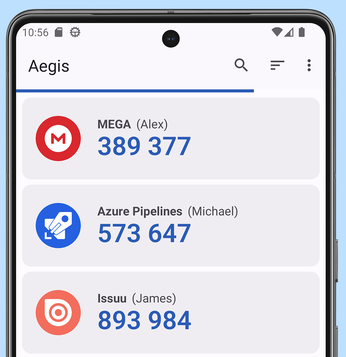
Aegis is an Android application to manage TOTP
Trusted environment
Any secret must be generated, encrypted or decrypted in a trusted environment.
Your daily desktop should be enough for most of them, for example to encrypt 2FA recovery keys.
Depending on your need, you probably want to generate a backup age identity, protected by a password. This is the secret to rule them all.
For this one secret, you may want to use a live USB as a trusted environment, to get something more trusted.
You need to install 3 things ykman, age-encryption and age-plugin-yubikey, the name may change depending on your distribution.
Age recovery identity
So, if losing all your Yubikeys at the same time is a possibility, you need a password protected age identity that you can store on a drive you keep in a safe place
This identity should be generated in a particularly trusted environment, as it can be used to decrypt all the other secrets.
~/.p > mkdir SEEDS
~/.p > sudo mount -t tmpfs -o size=100M tmpfs SEEDS/
~/.p > cd SEEDS
~/.p/SEEDS> age-keygen -o backup_identity
Public key: age123[...]
~/.p/SEEDS> age -p -e -a backup_identity > encrypted_backup_identity.txt
~/.p/SEEDS> echo "# Backup ID" > age-recipients
~/.p/SEEDS> age-keygen -y < backup_identity >> age-recipients
~/.p/SEEDS> cat age-recipients
# Backup ID
age123[...]
~/.p/SEEDS> rm backup_identity
You should write the password of the key on a piece of paper and store it safely.
Tip: One of the first secret you can store with passage is this password, you may need it if you lose the paper you wrote the password on.
Configure the Yubikeys
The Yubikeys are configured with ykman, and age needs a plugin to use the keys' PIV: age-plugin-yubikey.
At this point, you're supposed to have your age recovery identity if you want one.
Daily Yubikeys' identity
First, we configure the Yubikeys we want to use on a daily basis, that is, the ones we keep nearby to log in to websites and other services.
We change the key secrets, and PIN, then finish the age setup.
- (Optional) Change the PIV retries counter. This resets the PIN and PUK to their factory defaults:
> ykman piv access set-retries- Change the PIV management key (we generate a key that stays on the hardware, protected by a PIN), the PUK (recovery) and the PIN:
> ykman piv access change-management-key -t -p
> ykman piv change-puk
> ykman piv change-pin- Generate an age key for each hardware key, and add to the passage store’s recipients.
Note: Replace 83 with the first retired slot available.
You can find this slot with the command ykman piv info,
if you haven't used any retired slot yet, it should be the 82nd.
> ykman piv info
... (Check current slots)

~/.p/SEEDS> ykman piv keys generate --algorithm ECCP256 83 --touch-policy ALWAYS --pin-policy ONCE pub.pem
~/.p/SEEDS> ykman piv certificates generate --subject "CN=age" 83 pub.pem
~/.p/SEEDS> ykman piv info
... (A new slot is used)
~/.p/SEEDS> echo "# YWallet" >> age-recipients # Change with your key name
~/.p/SEEDS> age-plugin-yubikey --list-all >> age-recipients
Recovery Yubikey
If you want to keep a Yubikey for recovery tasks, specially if you haven't set an age recovery identity: generate an identity with touch-policy=CACHED.
This policy is a little more lax than the daily key setup, but it allows some automated tasks.
For example it will be used if you get a new Yubikey and want to encrypt the current secret to this key as well.
- (Optional) Change the PIV retries counter. This resets the PIN and PUK to their factory defaults:
> ykman piv access set-retries- Change the PIV management key (we generate a key that stays on the hardware, protected by a PIN), the PUK (recovery) and the PIN:
> ykman piv access change-management-key -t -p
> ykman piv change-puk
> ykman piv change-pin- Generate an age key, and add to the passage store’s recipients. This is the step that differs from the other kind of key:
Note: Replace 83 with the first retired slot available.
You can find this slot with the command ykman piv info,
if you haven't used any retired slot yet, it should be the 82nd.
~/.p/SEEDS> ykman piv keys generate --algorithm ECCP256 83 --touch-policy CACHED --pin-policy ONCE pub.pem
~/.p/SEEDS> ykman piv certificates generate --subject "CN=age" 83 pub.pem
~/.p/SEEDS> ykman piv info
... (A new slot is used)
~/.p/SEEDS> echo "# YHome" >> age-recipients # Change with your key name
~/.p/SEEDS> age-plugin-yubikey --list-all >> age-recipients
FIDO2 setup
The main use case of the security keys is to log in on websites or services without a password. As soon as you have access to one of your keys, you can retrieve your access to your accounts.
That's particularly useful to get access to your cloud hosting your password manager file for instance.
There are 2 kinds of keys:
-
Discoverable keys, also named resident keys, that are stored on the key.
- You usually don't need to enter any username to login.
- Authentication with a key protected with a PIN is an authentication with 2 factors as you need the PIN and the hardware key.
-
Non-discoverable keys, who require a challenge from the server.
- This kind of key require the user to enter their username, and is often used as a 2nd factor to authenticate (so username+password+key).
- When it is used as a 2FA, website usually don't require the key PIN.
- This kind of key is compatible with U2F.
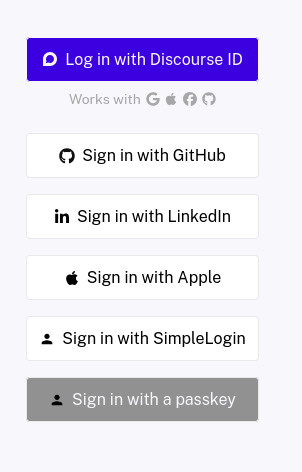
Discourse, a FOSS forum solution, offers an option to log in with a discoverable key
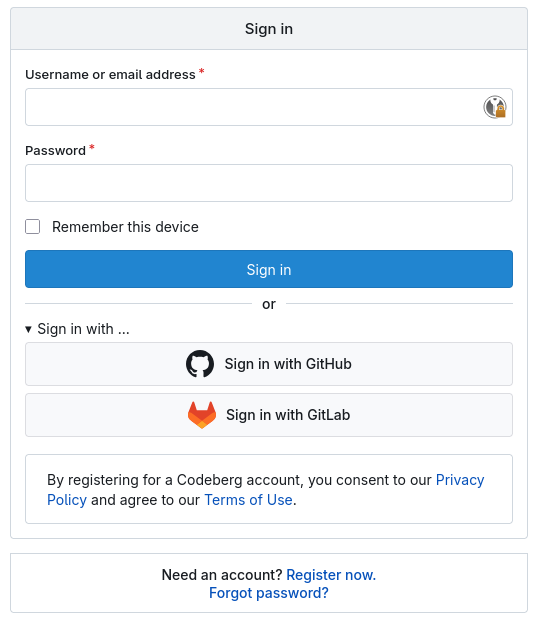
Codeberg doesn't offer an option to log in with a discoverable key. But security keys can be used as a 2FA.
Configure the Yubikeys
Again, the Yubikeys are configured with ykman.
The setup is pretty straightforward. All you have to do is to change the PIN of the keys:
> ykman fido access force-changeslots.md
While it is always possible to list resident keys (ykman fido credentials list), it isn't possible to list where we registered with non-discoverable keys.
Keeping a list of these websites is particularly useful the day you will receive a new Yubikey.
For that, I have a slots.md file in my passage store that I update whenever I register a new key.
It also contains other information like the key serial number, or PIV slots used for age.
~/.passage/store/slots.md:
# Yubikey - slots

YNano:   21 235 311
YWallet: 21 235 312
YHome:   21 235 313

## FIDO2

### Discoverable

| Service                   | YNa   | YWa  | Backup |
|---------------------------|-------|------|--------|
| github                    | OK    | OK   | OK     |
| ssh_ed25519-sk            | OK    | OK   | OK     |
| google unifiedpush.org    | OK    | OK   | OK     |

### Non-Discoverable

| Service               | YNa   | YWa  | Backup |
|-----------------------|-------|------|--------|
| Gitlab                | OK    | OK   | OK     |
| Strip                 | OK    | OK   | OK     |
| Nextcloud (s1m)       | OK    | OK   | OK     |
| Nextcloud (admin)     | OK    | OK   | OK     |
[...]

### SSH

| Service                       | YNa   | YWa  | Backup |
|-------------------------------|-------|------|--------|
| home                          | OK    | OK   | OK     |
| back                          | OK    | OK   | OK     |
| github                        | OK    | OK   | OK     |
| codeberg                      | OK    | OK   | OK     |
[...]

### PIV

82 -> 95 are free

| Service      | Slot | YNa | YWa | YBa | Backup | Policy |
|--------------|------|-----|-----|-----|--------|--------|
| Management   | -    | OK  | OK  | OK  | \*     |        |
| Age          | 82   | OK  | OK  | +TC | OK     | PO+TA  |

\* The management key is stored in the key, protected with PIN+UV.

Policy: Px=PIN, Tx=Touch
xD=Default, xN=Never, xA=Always, xO=Once, xC=Cached

Note: PO ~= Cached, because the key is powered off after 5 secs
Websites
All websites don't have the same flow to enroll new passkeys.
- Some of them require to enable 2FA first.
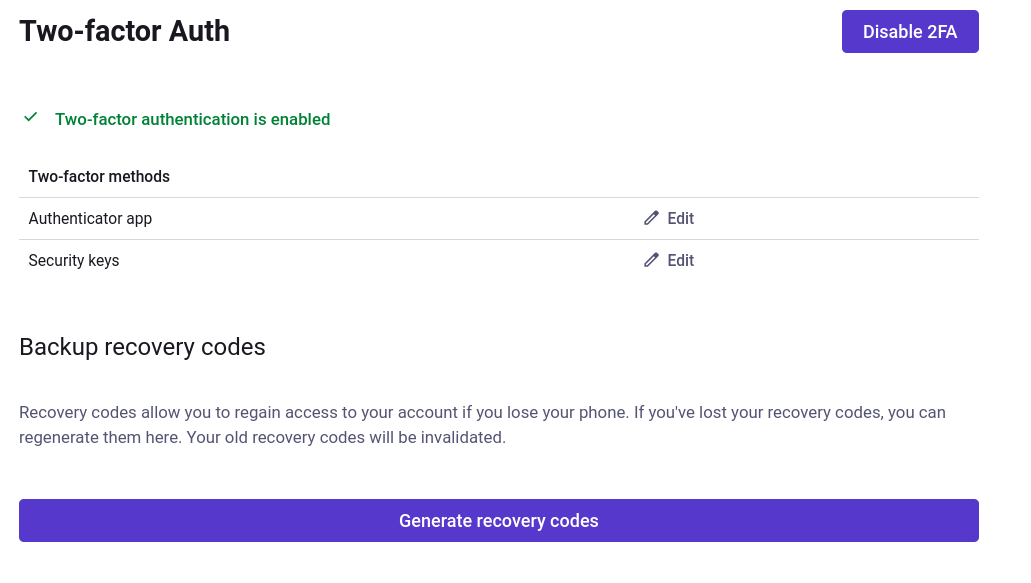
Mastodon requires to set a TOTP to use Passkeys
In this case, I use pass/passage's OTP extension:
- I take a screenshot of the QR code
- Add the OTP to passage
wl-paste | zbarimg -q --raw - | passage otp insert gitlab/otp # QR - Validate the OTP
passage otp gitlab/otp - Then register the keys
-
Most website also give a backup key, which I add to passage:
passage add -m gitlab/backup -
Some websites use FIDO2 only for 2FA (non-resident keys), others offer only resident keys, and still others offer both.
-
Finally, only a few websites offer passwordless FIDO2 authentication using non-resident keys. In this case, the user simply needs to enter their username.
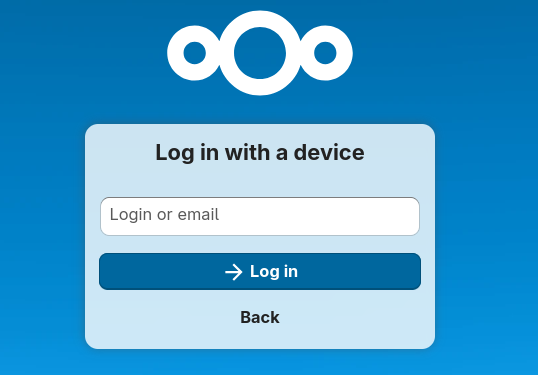
Nextcloud offers passwordless authentication using non-resident keys.
And every time I enroll passkeys, I enroll the 2 Yubikeys (YNa, and YWa), and add it to my slots.md file.
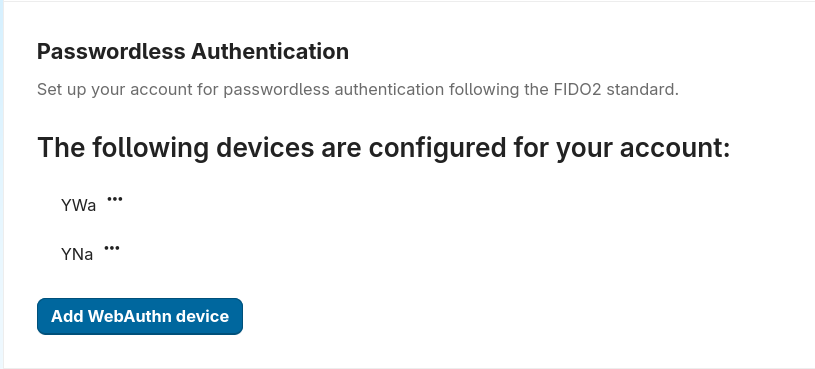
My 2 daily Yubikeys are registered on Nextcloud
SSH
OpenSSH has a built-in support for FIDO2 authentication, with both discoverable or non-discoverable key.
Personally this is exactly the kind of service I want to keep access to, even if I lose my KeePass(.kdbx) file, therefore I prefer to use discoverable ones.
So I have 3 keys:
- 2 discoverable keys, one with YNano and the other with YWallet
- A password protected ssh-key file. The password is stored in my passage store.
Generate
To generate a resident key, insert your Yubikey and run:
> ssh-keygen -t ed25519-sk -O resident -O verify-required -C "your_email@example.com"Add to authorized_keys
Whenever I add my public keys on a machine, I add these lines to /.ssh/authorized_keys:
sk-ssh-ed25519@openssh.com AAAAGn[...]A1= sim@ykn
sk-ssh-ed25519@openssh.com AAAAGn[...]B2= sim@ykr
ssh-ed25519 AAAAC[...]C sim@back
Using resident keys on a new machine
Insert your Yubikey and run:
> ssh-keygen -KResources
GnuPG operations
GnuPG (Gnu Privacy Guard) is an historical cryptographic tool, to encrypt and sign stuff. This tool contains tons of options and parameters and is easy to mess with.
I try to avoid using GPG now, but it happens that I need it, to sign libraries for instance. In this case I use openpgp-card-tools (oct). Its interface is simple, it works well, and it doesn't require a daemon that could interfere with other uses of the key.
Resources to generate and manager GnuPG keys:
Receiving a new Yubikey
At some point, you will likely buy a new key, maybe because you lose or break the previous one, or any other impredictable reason.
When you get a new key:
- Setup a trusted environment again (cf. Trusted environment)
- Generate age identity for the key (cf. Daily Yubikeys' identity)
- Reencrypt your passage store:
- For the following command, you should use your recovery Yubikey (the one configured with
touch-policy=CACHED), or the age recovery identity (the one stored in a file protected with a password), else you will have to touch the Yubikey for every passage entry. - Once ready run:
passage reencrypt
- For the following command, you should use your recovery Yubikey (the one configured with
The age-recipients can then be used with your passage store.
Note about post-quantum
Age is currently working on a solution to get Quantum-resistent encryption with our keys. The setup will likely have to be updated once released.